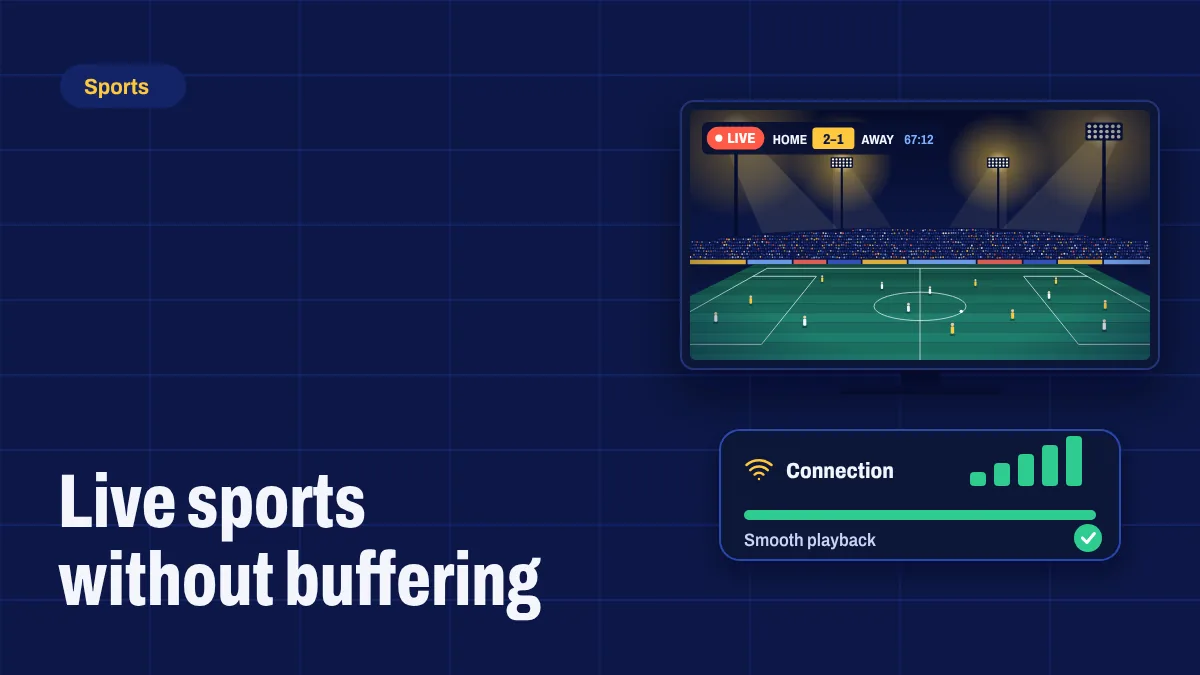
Live sport is the hardest test for any streaming setup. Fast movement needs more data than a talk show, and big matches mean millions of people are online at the same moment. The good news: most match-day buffering is caused by things you can fix at home in a few minutes. Work through this checklist before kick-off.
The day before
1. Test your connection at match time
Run a speed test on the device you’ll watch on, or a phone in the same spot, at the same time of day as the match. Evening speeds are often lower than morning speeds. For one Full HD stream, you want at least 20 Mbps; for 4K, 35 Mbps or more. Our guide to internet speed for IPTV explains how to plan for several screens.
2. Get your device on a cable
An Ethernet cable beats Wi-Fi every time for live sport. Most TV boxes have an Ethernet port, and Fire TV Sticks and Google TV dongles accept a small adapter. If a cable isn’t possible, use 5 GHz Wi-Fi and move the router or device closer together.
3. Update the app and device
Install updates the day before, not ten minutes before kick-off. Updates often include playback fixes, and you don’t want a forced update during the warm-up.
An hour before kick-off
4. Restart everything
Restart your streaming device and your router. A fresh start clears memory and refreshes the connection. Plug the router in first and wait for it to come back online before starting the device.
5. Clear the app cache
On Fire TV and Android TV, go to the app in Settings → Applications (or Apps) and choose Clear cache. This doesn’t sign you out.
6. Free up the connection
Pause big downloads, game updates, cloud backups and other streams in the house. One 4K download can be enough to tip a busy connection into buffering.
At kick-off
7. Choose the right quality
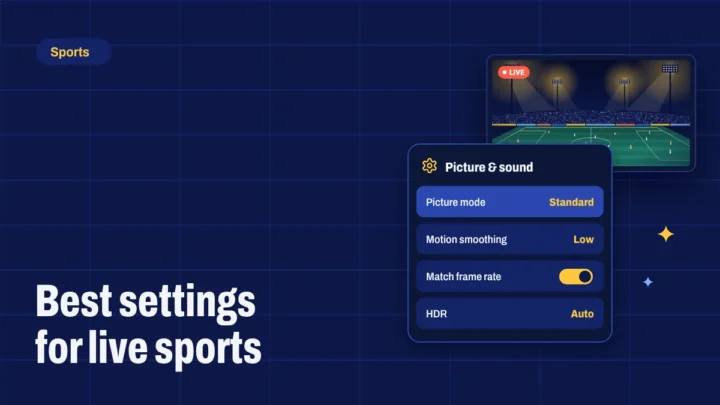
Pick the version of the channel that matches your connection: 4K on a fast wired connection, Full HD on good Wi-Fi, HD on a slower or busy connection. A steady HD picture is far better than a 4K picture that keeps pausing.
8. Start a few minutes early
Open the channel five minutes before kick-off so the stream settles. Use the TV guide to find the right channel early instead of searching at the last minute.
If it starts buffering
- Switch to a lower quality of the same channel.
- Try another channel showing the same event, if there is one.
- Restart the app, then the device if needed.
- Check whether other channels play smoothly. If they do, the problem is likely that channel’s source; if none do, it’s likely your connection.
A delay of a few seconds to a minute compared with satellite or cable is normal for internet streaming. If friends are texting goals before you see them, turn off notifications for the match.
After the match
If you had problems even with a wired connection, open a ticket with the channel name, the time it happened, your device and a speed test result. That information helps us see whether the issue was on our side. Read more about how we keep streams steady in anti-freeze technology, and browse what’s on in sports channels.