In this guide
Most TVs come out of the box with settings designed to look bright in a shop, not to show fast-moving sport naturally. A few minutes in the settings menu makes a real difference to how matches look on Apollo Group TV. Menu names vary between brands, so look for the closest match on your TV.
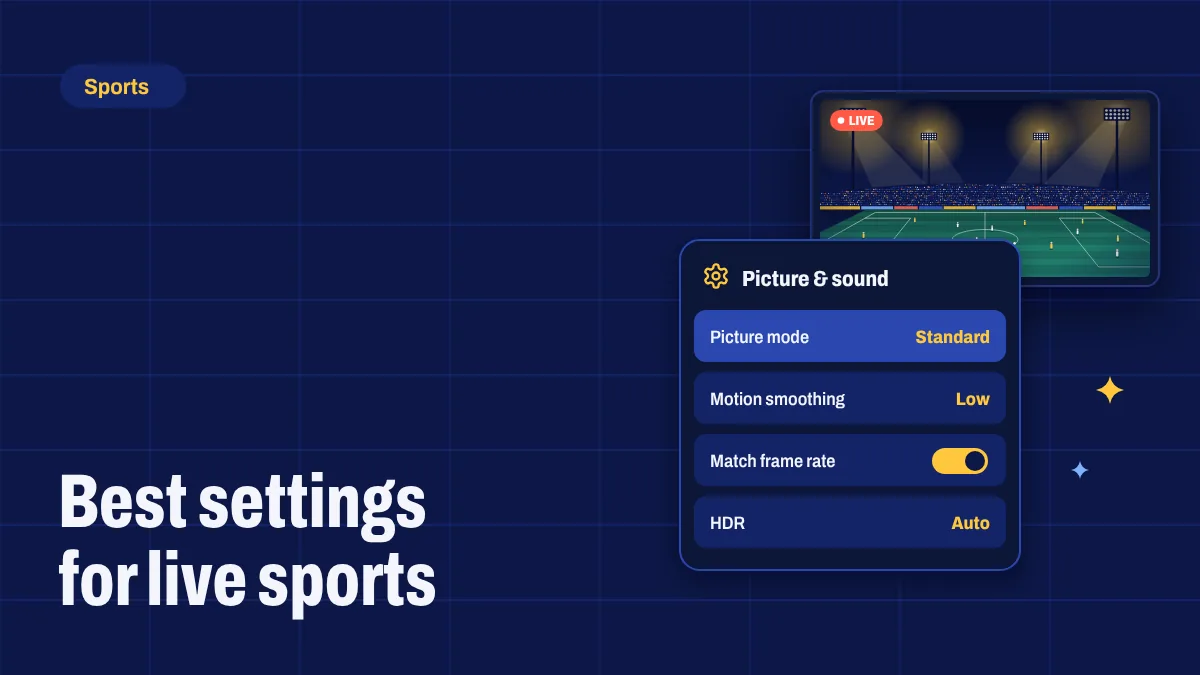
Picture mode
Start with the picture mode, because it changes everything else.
- Sports mode boosts brightness and colour. It can look punchy but often makes grass look unnaturally green and skin tones too warm.
- Standard or Natural is a good balanced choice for daytime viewing.
- Movie, Cinema or Filmmaker mode gives the most accurate colours, best in a darker room.
Try Standard first, then compare with Movie during an evening match.
Motion smoothing
Motion smoothing (called TruMotion, Motionflow, Auto Motion Plus or similar) inserts extra frames to make movement look smoother. For sport, it can help a little with fast pans, but it can also add a “soap opera” look and visible artefacts around the ball and players.
- If the ball looks wobbly or players have halos, turn motion smoothing down or off.
- If fast camera pans look jerky, try a low setting rather than high.
Refresh rate and frame rate
Live sport is usually broadcast at 50 or 60 frames per second. On your streaming device:
- Set the display resolution to 4K if your TV supports it, or 1080p otherwise.
- Turn on match frame rate or match content if your device offers it, so the TV switches to the stream’s frame rate.
On Fire TV, look in Settings → Display & Sounds. On Google TV and Android TV, look in Settings → Display & Sound → Advanced display settings.
4K and HDR
Choose the 4K version of a channel when it’s available and your connection is fast enough. If your TV supports HDR, make sure HDR is enabled on both the TV and the streaming device. If HDR makes the picture look dark or washed out, try the device’s “HDR: adaptive” or “match dynamic range” setting instead of “always on”.
Sound
- Connect a soundbar or receiver over HDMI (ARC or eARC) for crowd atmosphere you can feel.
- Use the TV’s voice or dialogue enhancement if commentary gets lost under crowd noise.
- Fix lip-sync with the audio delay or AV sync setting on your TV or soundbar if commentary is slightly ahead of or behind the picture.
App settings
- Hardware decoding: if your IPTV app has a choice, try hardware decoding for smoother playback on TV devices.
- Buffer size: some apps let you increase the buffer, which can reduce pauses on borderline connections at the cost of a slightly longer delay.
- Favourites: add the sports channels you use most so you can switch quickly between matches.
Quick settings checklist
| Setting | Recommended for sport |
|---|---|
| Picture mode | Standard or Natural (Movie in a dark room) |
| Motion smoothing | Low or off |
| Device resolution | 4K on a 4K TV, otherwise 1080p |
| Match frame rate | On |
| HDR | On, if the picture looks right |
| Audio | Soundbar or receiver over HDMI ARC or eARC |
Settings can only do so much if the stream is buffering. Before the big match, run through our match-day checklist for buffer-free sport, and see what’s on in sports channels.