This guide works on Fire TV devices that run Fire OS, including the Fire TV Stick 4K Max, the Fire TV Cube, Fire TV smart TVs and Fire TV Stick models released before 2026. Models that run Vega OS, such as the Fire TV Stick 4K Select and the 2026 Fire TV Stick HD and 4K, can’t install the app. If you’re not sure which you have, see our Firestick device page.
What you need
- A Fire TV device running Fire OS, connected to the internet.
- Your welcome email with your login details and the download link or code for the app.
- About ten minutes.
Step 1: Install Downloader
- On the Fire TV home screen, go to Find and select Search.
- Type Downloader and select it in the results.
- Select Get or Download and wait for it to install.
Downloader is a free app used only to download the Apollo Group TV app from the link we give you.
Step 2: Turn on Developer options
Amazon hides Developer options until you unlock them:
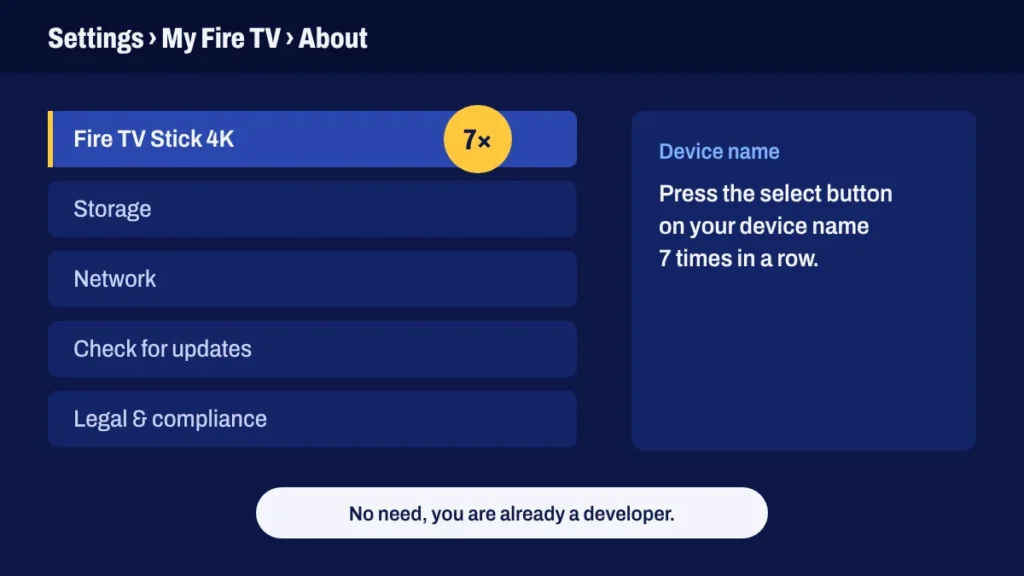
- Open Settings → My Fire TV → About.
- Highlight your device name (the first line) and press the select button on your remote seven times.
- When you see “No need, you are already a developer”, press Back.
Step 3: Allow Downloader to install apps
Go to Settings → My Fire TV → Developer options → Install unknown apps, find Downloader and switch it On. On older models, this is a single switch called Apps from Unknown Sources.
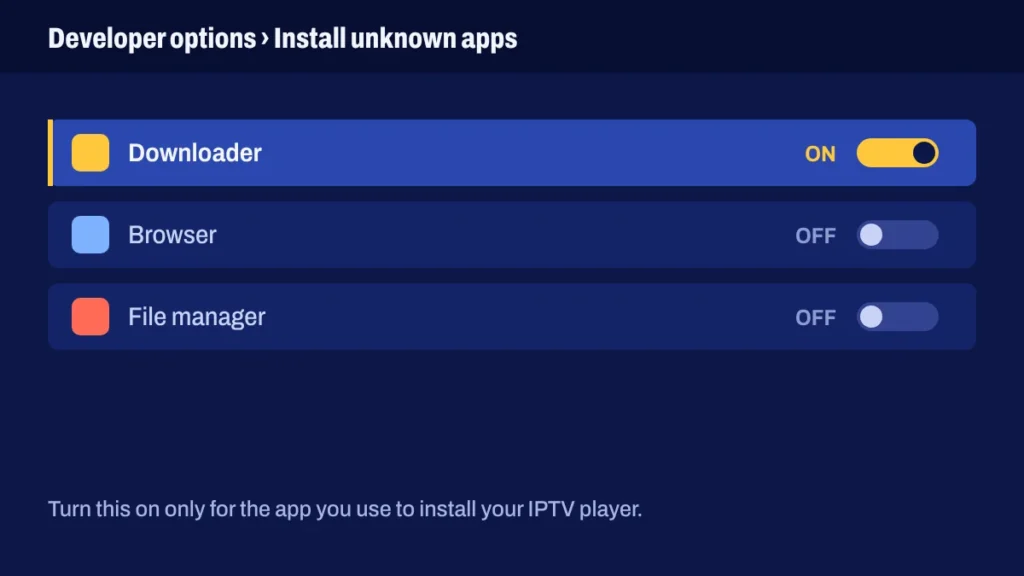
This only lets Downloader install apps. Use it for links you trust, like the one in your welcome email.
Step 4: Download and install the app
- Open Downloader and allow access to files if it asks.
- Select the address box, type the download link or code from your welcome email and select Go.
- When the download finishes, select Install, then Done.
- Downloader offers to delete the installer file. Choose Delete to save space.
Step 5: Sign in
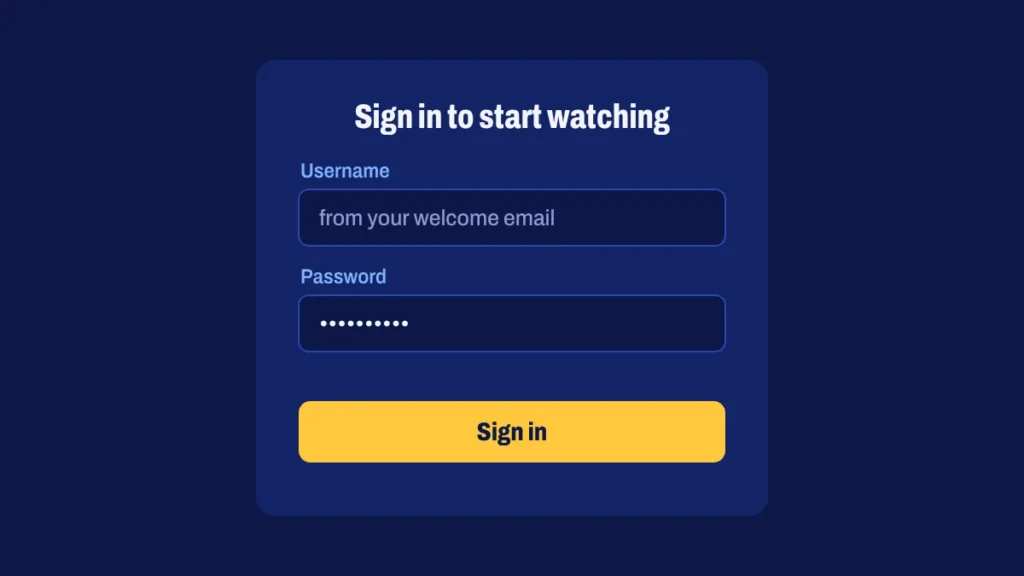
Open the app from Your apps & channels. Enter your username and password exactly as they appear in your email; both are case-sensitive. The channel list and TV guide load after a few seconds.
To keep the app on your home screen, highlight it, press the menu button on your remote and choose Move to front.
Fixing common problems
- “App not installed”: your Fire TV may be low on storage. Uninstall apps you don’t use and try again.
- Login doesn’t work: check for extra spaces and capital letters. Copying the details from My subscription avoids typos.
- The picture pauses: see how to stop IPTV buffering and consider an Ethernet adapter.
- Can’t find Developer options: go back to About and press the device name seven times again.
Firestick setup questions
Do I need to repeat this when I renew?
No. The app stays installed and your login keeps working after renewal.
Can I install it on several Fire TV sticks?
Yes. Follow the same steps on each one. How many can watch at once depends on your subscription’s connections.
Should I turn Developer options off afterwards?
You can switch off Install unknown apps for Downloader once the app is installed. The app keeps working.