In this guide
Buffering happens when your device can’t download the stream as fast as it plays it. Most of the time the cause is at home: Wi-Fi, a busy connection or a device that needs a restart. Work through these fixes in order; most people are watching smoothly again by step four.
1. Test your internet speed
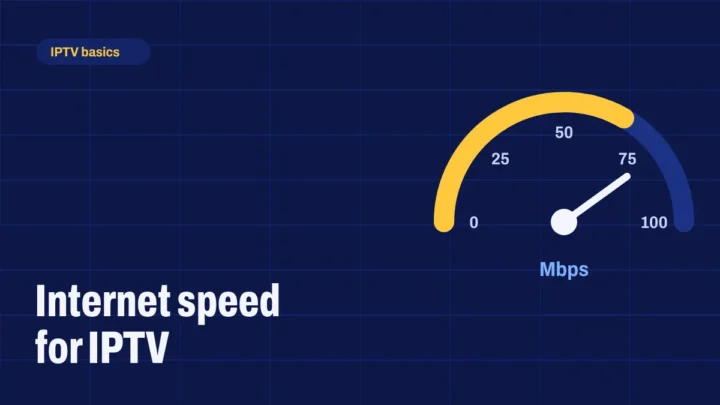
Run a speed test on the device you watch on, or on a phone in the same spot. For one HD stream, aim for at least 20 Mbps. Our guide to internet speed for IPTV explains how much you need for several screens.
2. Use a cable or 5 GHz Wi-Fi
An Ethernet cable is the most reliable connection. Many streaming sticks accept a small Ethernet adapter. If you stay on Wi-Fi, connect to the 5 GHz network and keep the device close to the router, with no thick walls in between.
3. Restart your device and router
Unplug your streaming device and your router, wait 30 seconds, then plug the router in first. Restarts clear memory and refresh the connection, and they fix a surprising number of problems.
4. Clear the app cache
- Fire TV: Settings → Applications → Manage installed applications → choose the app → Clear cache.
- Android TV and Google TV: Settings → Apps → choose the app → Clear cache.
Clearing the cache doesn’t sign you out or delete your settings.
5. Free up memory and storage
Close apps running in the background and uninstall apps you don’t use. Streaming sticks have little memory, and a full device slows everything down.
6. Check who else is online
Large downloads, game updates, cloud backups and other streams on the same connection all compete for bandwidth. Pause them and see if the picture improves.
7. Try another channel
If only one channel buffers, the problem is likely that channel, not your setup. Switch to another channel, then try the first one again later.
8. Update the app and your device
Updates often fix playback problems. Check for a new version of the app and install any system updates for your device.
9. Lower the quality
If your connection is borderline, choose a lower-quality version of the channel when the app offers one. A slightly softer picture is better than constant pauses.
10. Contact support with the details
Still buffering? Contact us with your device model, the channel, the time it happened and your speed test result. With those details we can tell whether it’s your connection or something on our side.
Channels sometimes go offline briefly for maintenance. If every channel stops at once, wait a few minutes before changing your settings.
1 comment
Comments are closed.